Whether you’re trying to build a clean desk setup, connect multiple monitors, or power a handful of peripherals, the choice between a USB-C hub and a Thunderbolt dock matters more than many shoppers realize. These two product types may look similar on the surface, but they differ in speed, expandability, display support, power delivery, and real-world performance.
In this SEO-optimized guide, you’ll learn:
- What each technology really is
- How they differ in speed and video support
- Which one fits your use case
- The optimal choice for everyday users vs power users
What Are USB-C Hubs and Thunderbolt Docks?
📌 USB-C Hub
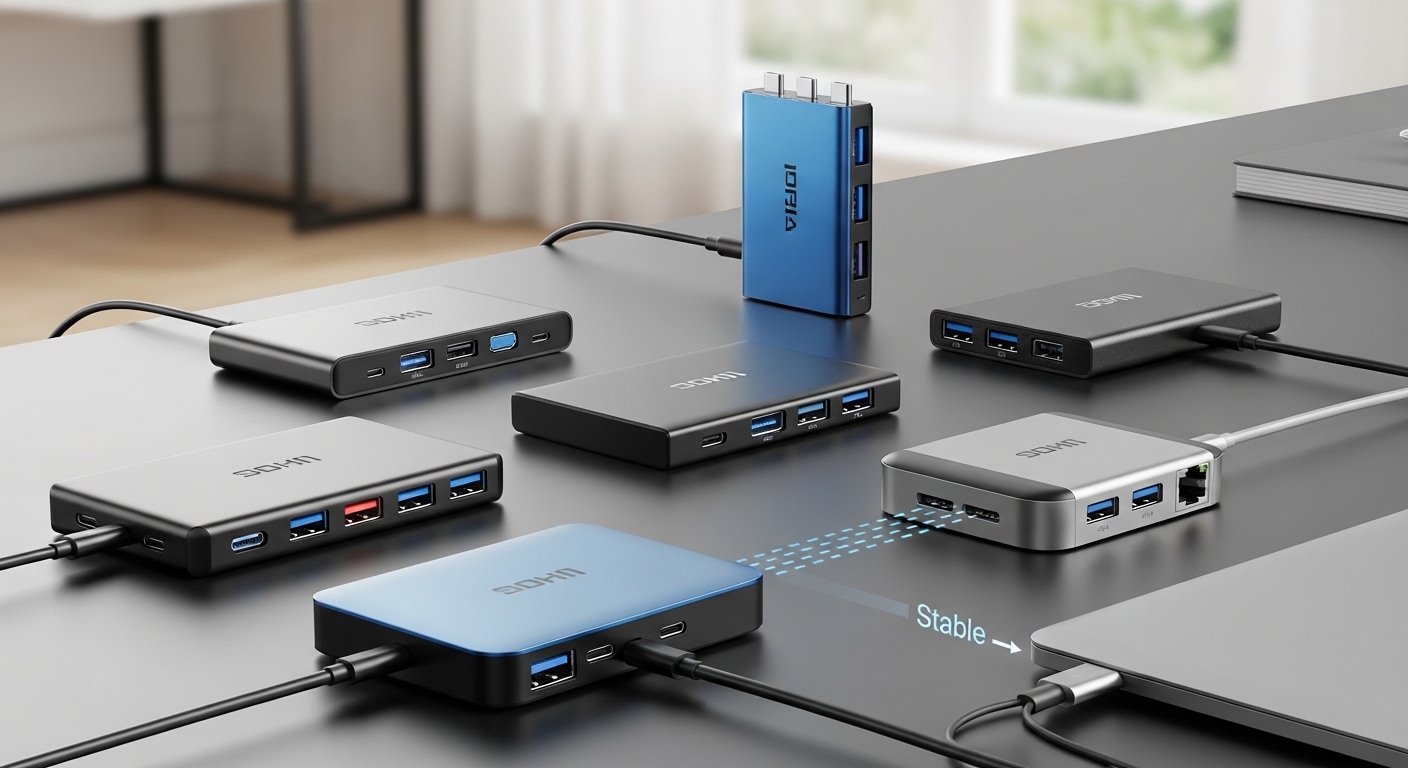
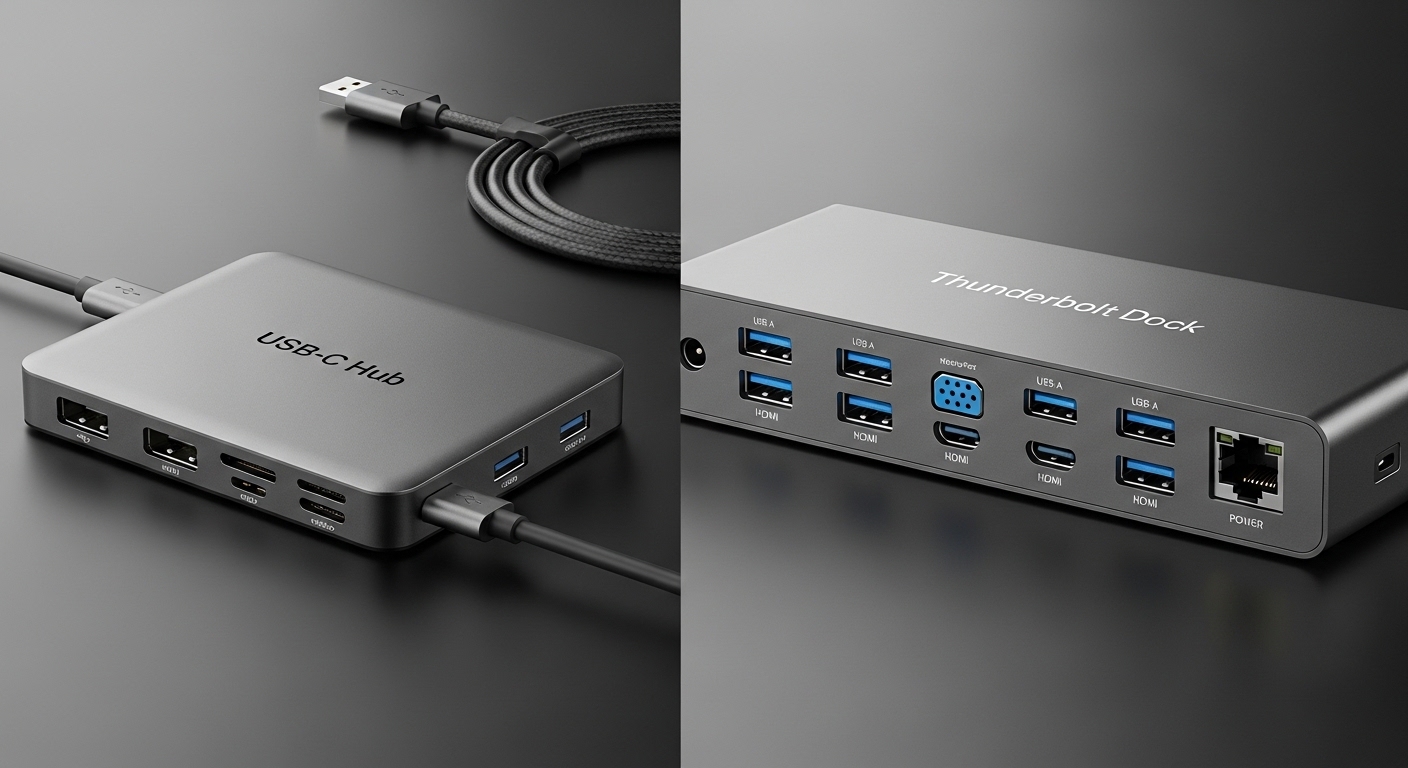
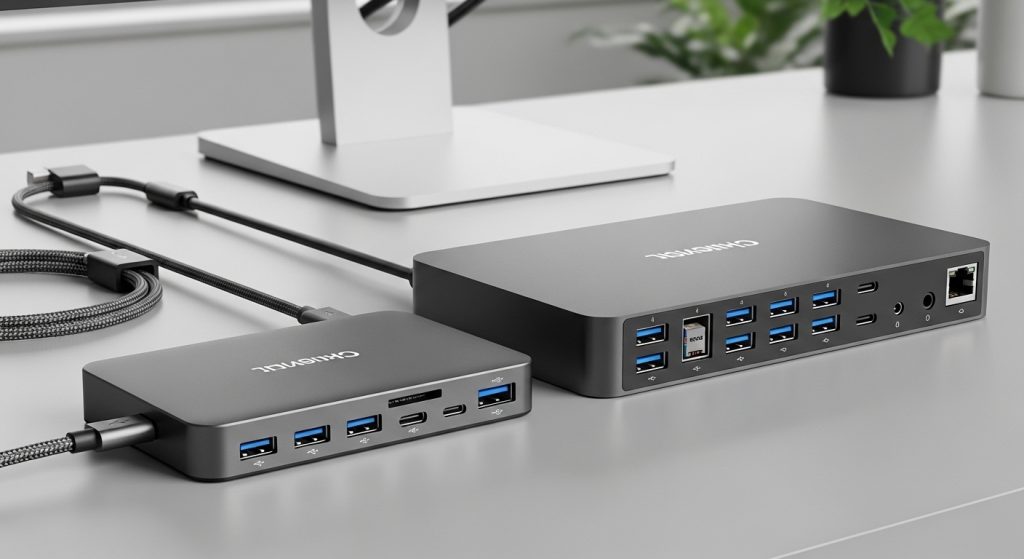
A USB-C hub expands one USB-C port into multiple ports like HDMI, USB-A, SD card readers, Ethernet, and USB-C PD (power delivery).
These hubs are ideal for laptops and tablets that support USB-C data transfer.
📌 Thunderbolt Dock
Thunderbolt docks use Thunderbolt 3 or Thunderbolt 4, which combines PCIe (fast data lanes), USB-C, display signals, and power delivery over the same cable.
They’re essentially mini docking stations built for high-performance workflows.
Real Performance Differences
⚡ Data Transfer Speeds
| Feature | USB-C Hub | Thunderbolt Dock |
|---|---|---|
| Maximum Data Speed | Up to 10 Gbps (USB 3.2 Gen 2) | Up to 40 Gbps (Thunderbolt 3/4) |
| Best For | USB peripherals, storage, modest workflows | High-speed SSDs, pro workflows, large file transfers |
USB-C Hub (Up to ~10 Gbps)
USB-C hubs offer excellent speed for most everyday tasks:
✔ External drives
✔ USB peripherals
✔ Wi-Fi adapters
But when you’re transferring large video files or backups, the USB-C limitation becomes noticeable.
Thunderbolt Dock (Up to ~40 Gbps)
Thunderbolt significantly outpaces USB-C hubs, making it ideal for:
✔ Large SSD workflows
✔ Audio/video production
✔ Multiple high-speed peripherals
✔ Daisy-chaining devices
In real life: Thunderbolt can feel 3-4× faster when working on big files.
🖥 Display Support & Multi-Monitor Setups
| Feature | USB-C Hub | Thunderbolt Dock |
|---|---|---|
| Single 4K Support | ✔ Usually | ✔ Yes |
| Dual/Triple Display Support | ⚠ Limited | ✔ Yes (often native) |
| eGPU Support | ❌ No | ✔ Yes |
USB-C Hubs
Many USB-C hubs can drive a single external display (via HDMI/DP). Even then, support can vary based on your laptop’s USB-C capabilities (DisplayPort Alt Mode required).
Dual displays or ultra-high refresh rates are often not possible without Thunderbolt.
Thunderbolt Docks
Thunderbolt docks often support:
✔ Dual 4K @ 60Hz
✔ Triple display setups (depending on dock model/device)
✔ Higher refresh rates and color depth
This makes Thunderbolt docks a clear choice for creative pros and multi-monitor productivity setups.
🔋 Power Delivery (Charging)
| Feature | USB-C Hub | Thunderbolt Dock |
|---|---|---|
| Charging Output | Up to ~100W (depends on hub) | Up to ~100W and sometimes higher |
| Pass-Through Charging | ✔ Yes | ✔ Yes |
| Ideal For | Basic laptops/tablets | Workstations + laptops + peripherals |
Both USB-C hubs and Thunderbolt docks can deliver power to your laptop while providing expanded connectivity. However, higher-tier Thunderbolt docks often deliver more consistent power and sometimes higher wattage (e.g., for bigger laptops).
🧠 Compatibility & Ease of Use
USB-C Hub
✅ Works with USB-C laptops and tablets
❌ May not support dual displays reliably
❌ Limited data throughput compared to Thunderbolt
USB-C hubs are excellent for general productivity and everyday use, especially if you only need a handful of ports.
Thunderbolt Dock
✅ Supports Thunderbolt devices and USB-C devices
✅ Best for multi-monitor, fast storage, and high-performance workflows
❌ More expensive
❌ Requires Thunderbolt support on your computer
Important: Thunderbolt docks will work with USB-C laptops, but they function as a USB-C hub unless your device actually supports Thunderbolt.
Pros & Cons: USB-C Hub vs Thunderbolt Dock
🔹 USB-C Hub — Pros & Cons
Pros
- Affordable and portable
- Good variety of ports (USB-A, HDMI, Ethernet, SD)
- Great for everyday devices (phones, tablets, basic laptops)
Cons
- Limited data bandwidth (max ~10 Gbps)
- Dual display support often problematic
- Power delivery can be basic
🔹 Thunderbolt Dock — Pros & Cons
Pros
- Ultra-fast data transfer (up to 40 Gbps)
- Excellent multi-monitor support
- Great for fast SSDs, eGPUs, and demanding peripherals
- Often more robust and professional grade
Cons
- Higher price
- Must have Thunderbolt-capable device to fully use features
Who Actually Needs Each?
🟦 Choose a USB-C Hub If You:
✔ Want affordability and portability
✔ Use laptops/tablets for everyday tasks
✔ Only need one external display
✔ Have basic USB peripherals
✔ Don’t work with huge files frequently
Best for: Students, casual users, remote workers, basic office setups.
🟩 Choose a Thunderbolt Dock If You:
✔ Use heavy file workflows (video, photos, large data)
✔ Need multiple displays (dual/triple)
✔ Use high-speed peripherals (fast SSDs, pro audio equipment)
✔ Want future-proof connectivity
✔ Have a Thunderbolt-supported device
Best for: Creatives, developers, power users, hybrid workstation setups.
Final Verdict: Which One Should You Get?
✨ USB-C hubs are best for everyday needs: lightweight, affordable, simple expandability for USB-A, HDMI, Ethernet, and charging.
🚀 Thunderbolt docks are ideal for higher-end work: blazing speed, robust multi-monitor support, multiple high-speed connections, and future-support for power users.
In short:
➡ If your laptop supports Thunderbolt and you want serious performance and expansion, go Thunderbolt.
➡ If you want good performance with no fuss and don’t need multi-monitor or pro-level speed, choose a USB-C hub.