Bluetooth audio has improved massively over the last few years, but many people still experience muddy sound, weak bass, audio dropouts, or inconsistent call clarity. The truth is, most Bluetooth audio problems are not caused by the earbuds or headphones alone — they usually come from settings, fit, or device limitations.
This guide shares real-world adjustments that actually improve Bluetooth audio quality, without requiring expensive upgrades or technical expertise.
Why Bluetooth Audio Sometimes Sounds Worse Than Expected
Bluetooth compresses audio before sending it from your device to your earbuds or headphones. That means quality depends on:
- The Bluetooth codec your device is using
- How well your earbuds fit your ears
- Your device’s audio settings
- Wireless interference around you
- Firmware and software optimization
Small adjustments in these areas can make a noticeable difference.
1. Check and Use the Best Bluetooth Codec Available
Bluetooth codecs control how audio is compressed and transmitted. Some deliver better sound quality and lower latency than others.
Common Bluetooth Codecs
SBC (Basic Default Codec)
- Universal compatibility
- Stable connection
- Lowest audio quality among modern codecs
AAC
- Often optimized for Apple devices
- Balanced sound quality and stability
- Good choice for iPhones and iPads
aptX / aptX Adaptive
- Higher sound quality than SBC
- Better latency performance
- Common on many Android devices
LDAC
- Supports very high bitrate audio
- Often provides the best wireless sound quality
- Available on many Android phones
How to Improve Codec Quality
On iPhone and iPad
Apple automatically uses AAC when supported. There is usually no manual selection needed.
On Android Devices
Many Android phones allow codec selection in developer settings.
Typical steps:
- Enable developer options
- Locate Bluetooth audio codec settings
- Select the highest-quality codec supported by both device and earbuds
Real-Life Tip
The best codec is the one both your phone and headphones support. Selecting a higher codec your earbuds do not support will not improve sound.
2. Improve Fit and Seal (The Most Overlooked Upgrade)
This is the most underestimated improvement you can make.
Why Fit Matters
Bluetooth earbuds rely heavily on a proper seal inside your ear canal. A poor seal causes:
- Weak bass response
- Reduced clarity
- Lower perceived volume
- Worse call microphone performance
What Actually Works
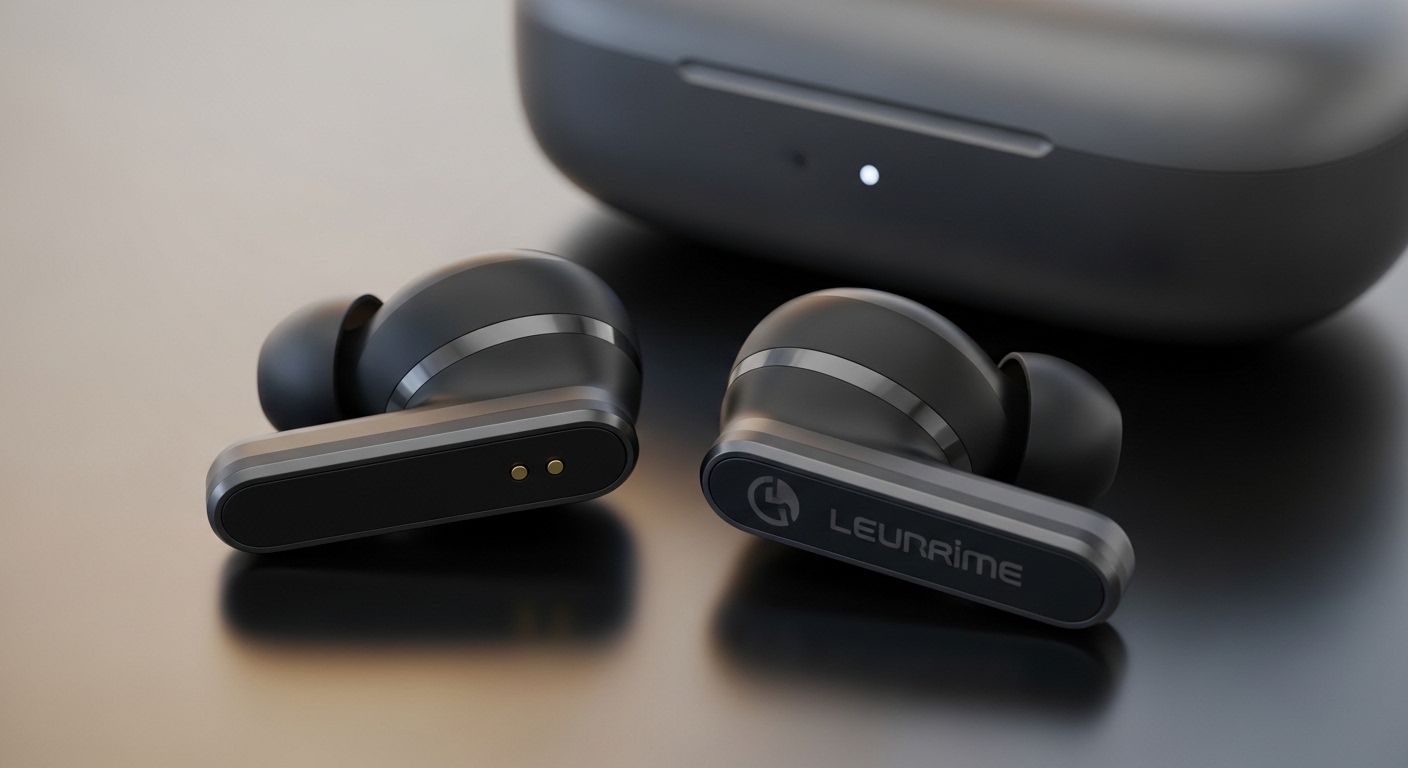
Try Different Ear Tip Sizes
Most earbuds include multiple tip sizes. Even switching one size up or down can dramatically improve sound.
Insert Earbuds Correctly
Rotate earbuds slightly while inserting to create a full seal.
Consider Foam Ear Tips
Foam tips can:
- Improve noise isolation
- Increase bass response
- Improve stability during movement
Real-Life Experience
Many people think their earbuds sound “cheap” until they try the correct ear tip size.
3. Optimize Your Device Audio Settings
Your phone or tablet often has audio settings that can either improve or harm Bluetooth sound quality.
Disable Audio Processing Features That Reduce Quality
Some phones include:
- Sound normalization
- Volume leveling
- Artificial surround sound
- Audio enhancements
These can sometimes reduce clarity or introduce distortion.
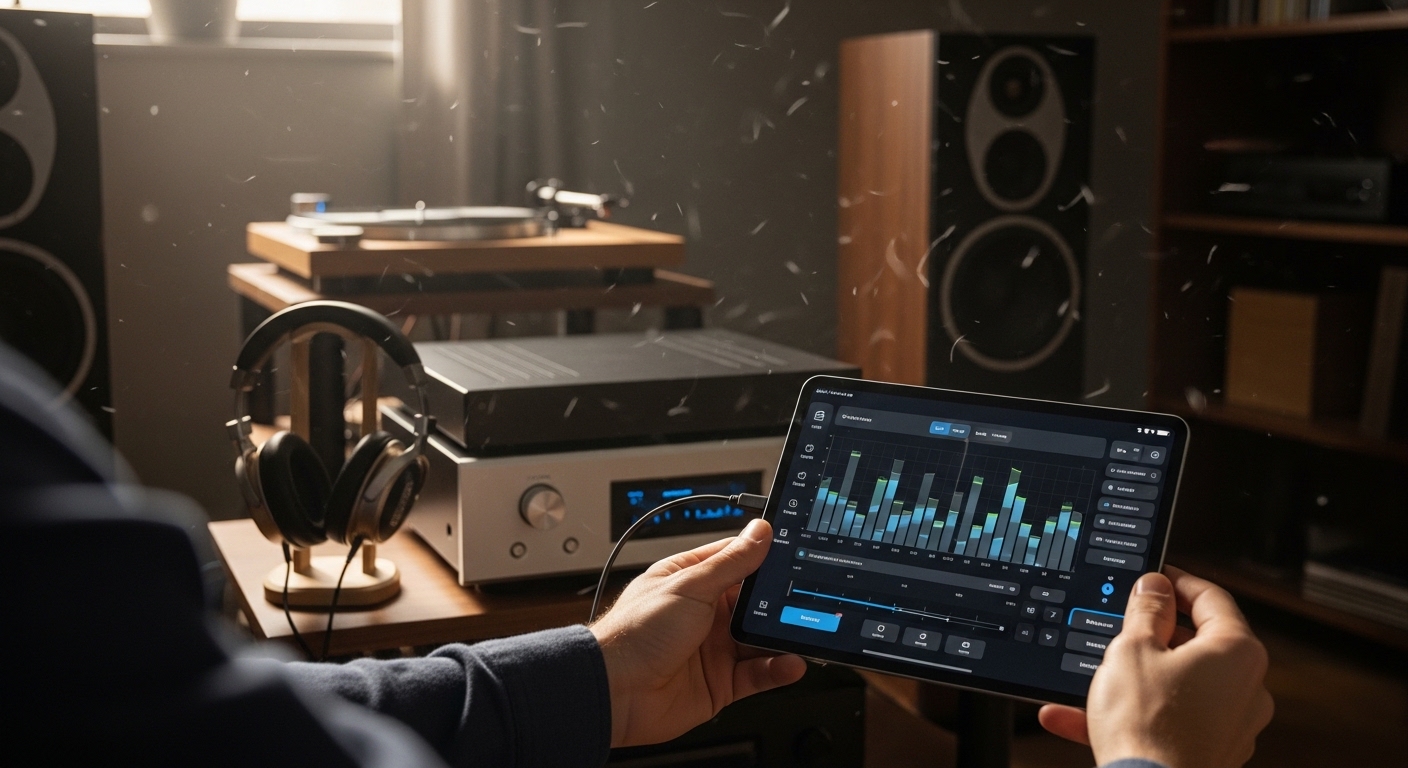
Use Equalizer (EQ) Carefully
EQ can improve audio quality when used moderately.
Practical tips:
- Slight bass boost can improve thin sound
- Small midrange boost improves vocals and podcasts
- Avoid extreme EQ adjustments which often reduce clarity
4. Reduce Wireless Interference
Bluetooth shares wireless space with Wi-Fi networks and other electronics.
Common Causes of Audio Dropouts
- Crowded public environments
- Wi-Fi routers operating on overlapping frequencies
- Smartwatches and multiple Bluetooth devices connected simultaneously
Fixes That Actually Work
- Keep your phone on the same side of your body as your earbuds
- Avoid placing your phone in bags surrounded by metal objects
- Disconnect unused Bluetooth devices
- Switch Wi-Fi routers to less crowded channels if possible
5. Keep Firmware and Software Updated
Manufacturers frequently release firmware updates that improve:
- Audio stability
- Codec optimization
- Connection reliability
- Battery performance
Many Bluetooth issues disappear after firmware updates, but users often forget to check.
6. Understand Volume and Audio Source Quality
Bluetooth can only transmit what it receives.
Streaming Quality Matters
Low streaming quality settings reduce Bluetooth audio clarity.
Consider:
- Increasing music streaming quality settings
- Using higher-quality audio files when possible
Volume Sweet Spot
Very high volume can introduce distortion on some Bluetooth devices. Many earbuds sound best at moderate-to-high volume rather than maximum.
7. Reset and Re-Pair When Audio Problems Persist
Bluetooth connections can develop glitches over time.
Resetting helps:
- Clear corrupted pairing data
- Improve connection stability
- Fix random audio dropouts
This simple step often solves persistent sound problems.
8. Choose the Right Listening Environment
Bluetooth audio quality changes depending on environment.
Quiet Indoor Environments
Allow you to hear subtle detail improvements from codec and EQ changes.
Loud Outdoor Environments
Require stronger fit and isolation to maintain audio clarity.
Common Bluetooth Audio Myths
Myth: Higher Bluetooth Version Always Means Better Sound
Bluetooth version mainly improves efficiency and stability, not necessarily sound quality.
Myth: Expensive Earbuds Always Sound Better
Fit, codec support, and settings often matter just as much as price.
Myth: More Bass Means Better Quality
Excessive bass often hides clarity and vocal detail.
Quick Troubleshooting Checklist
If your Bluetooth audio sounds bad, check these first:
✔ Confirm highest supported codec is active
✔ Test different ear tip sizes or fit adjustments
✔ Update firmware and device software
✔ Reduce wireless interference nearby
✔ Adjust EQ moderately
✔ Increase streaming audio quality
✔ Reset Bluetooth pairing if issues persist
Final Thoughts: The Upgrades That Actually Make the Biggest Difference
From real-world experience, the improvements that produce the most noticeable results are:
- Using the best supported codec
- Fixing earbud fit and seal
- Updating firmware and device settings
- Improving streaming audio quality
These changes often produce a bigger improvement than replacing your earbuds entirely.